
TABLE OF CONTENTS
- Logging On
- Uploading Files
- How many assets can be uploaded?
- Check the status of your uploads
- How to request support
Download the printable version.
Logging On
- Returning Users?
Navigate to https://promo-pbs.mediashuttle.com/ - First Time Media Shuttle User?
Click on the “Activate Account” link in the email invitation.
Enter your email address.
When prompted, create a password. - First Time Submitting Short Form Assets to Media Shuttle?
Look for email : "You are now a member of the Promotional Artifact Portal".
Click the link:https://promo-pbs.mediashuttle.com/
PBS PROMO VIDEO FILE AND TITLE NAMING CONVENTION
It is required you name your promo files this way before uploading!
They must match the title exactly
Series_Program_Season_Episode_Asset Type_Version_Duration
Examples:
- NOVA_Meteor Strikes_Episodic Promo_Cobrand Clean_30
- GPER_3710_Twilight Los Angeles_Episodic Promo_Cobrand Clean_30
- Sunday Lineup_Fall 2021_10-24-21_Combo Promo_Cobrand Clean_30.mov
Uploading Files
Step 1. Do you have multiple assets for the same show?
- Click the Add Files button browse to select your files to upload
- Or drag and drop

- Click the "Add Info" button.

Step 2. Provide basic information for the asset(s).
- Promo assets only - Copy and paste the provided Submission ID - This ID links your files to the show title.
- Non-promo assets - provide any number for submission ID - for example you can add 0.
- Then, specify the Show Catalog to which the asset/s belongs to.

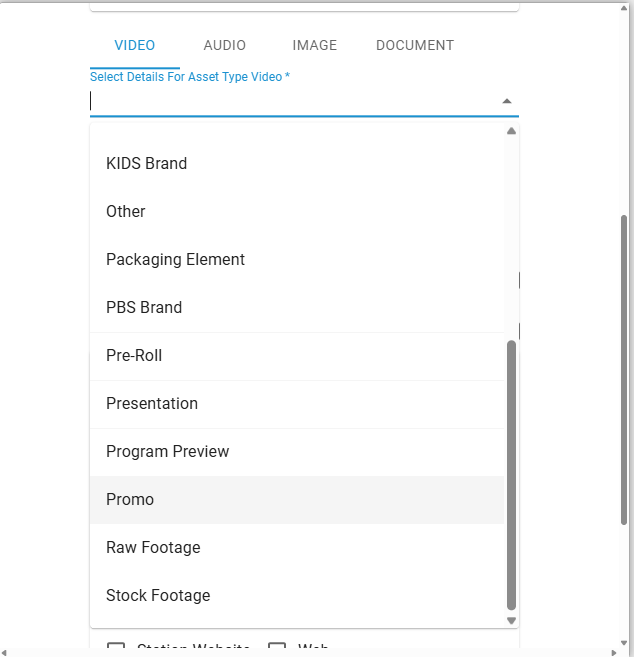
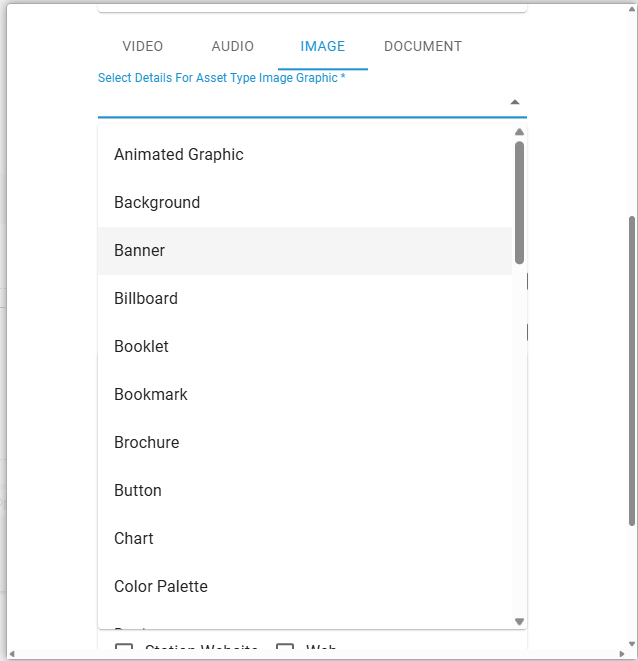
Step 3. Specify the asset type.
The choices are video, audio, image, or document. Click on each tab to select an asset type.
- Then, Specify the asset details. Examples: Video > Promo OR Image > Banner
 |  |
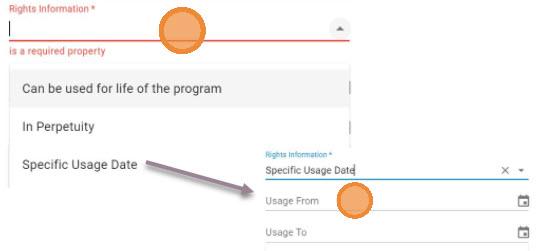
Step 4. Specify if the promo can be used for the life of the show.
- If stations can use this promo before the show rights start,
select In Perpetuity. - Otherwise, select Specific Usage Date then input the start/end date.
Step 5. Specify which platform(s) stations can publish/post/distribute this asset(s).

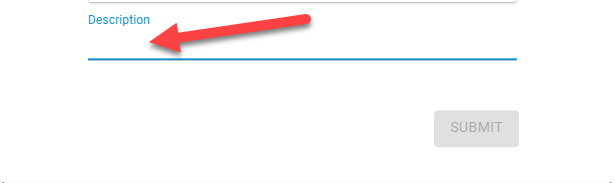
Step 6. Specify the asset descriptions - only for non-Promo assets.
Provide detailed description for non-promo assets - such as images, documents, graphics.
How many assets can be uploaded?
Tip! Repeat steps 1 - 6 as often as needed.
Check the status of your uploads
- Click the “My Transfers” button located at the top right.

How to request support
- Click on ? icon.
- Then, Click Contact Admin
- Add your question or concern and The Source support team will respond.
